State panel
State is where you declare everything the open page or component knows: the values it holds, the values it derives, the data it fetches, and the functions it can run. Open it by clicking State (the brackets icon) in the activity bar.
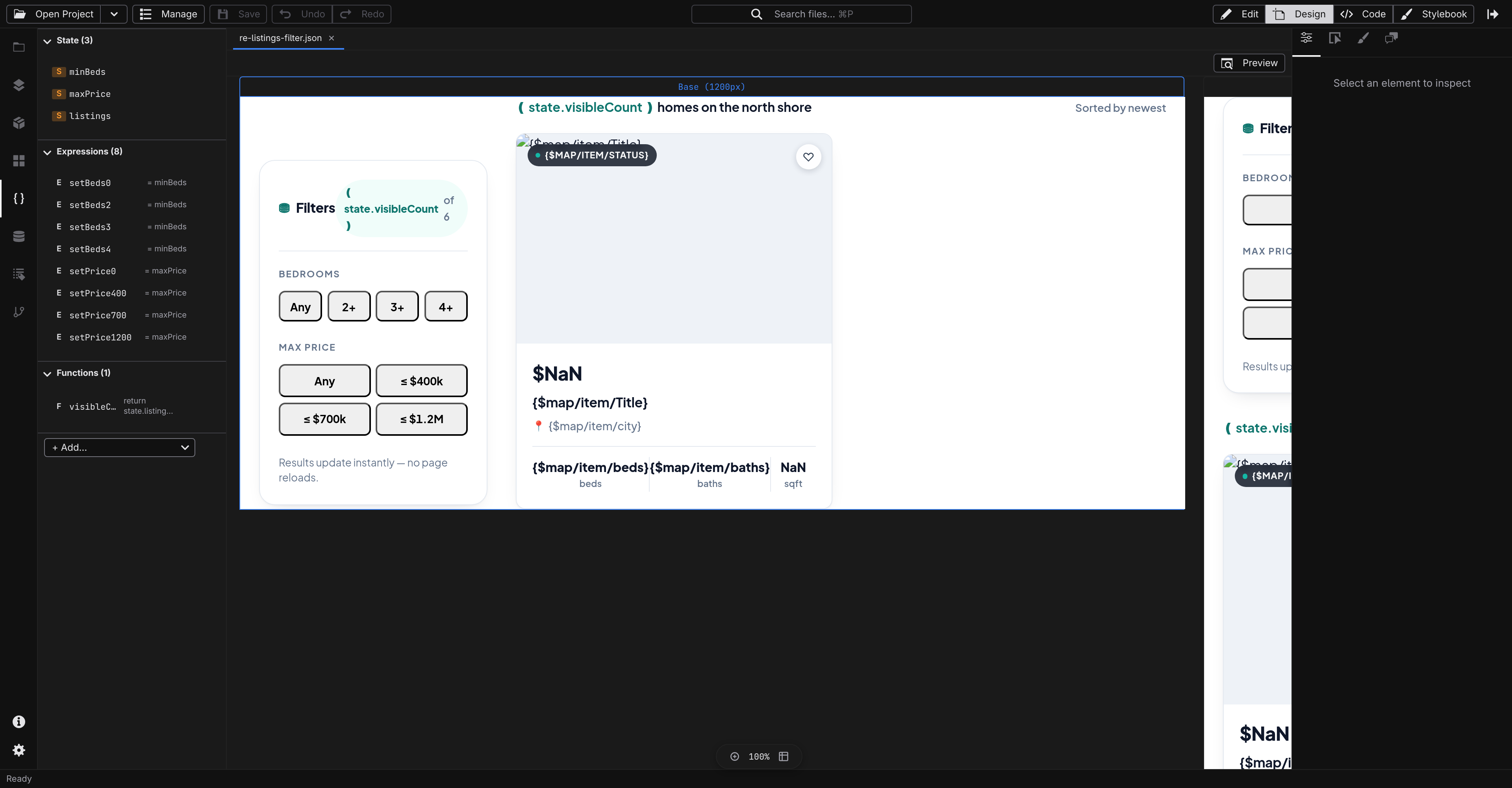
Every entry belongs to the open file — each page or component carries its own state, saved inside its own JSON file.
Read the list
Entries are grouped into collapsible sections with counts — State , Computed , Data , Expressions , Functions — and only sections with entries appear. Each row shows:
A colored badge for the kind of entry ( S state, C computed, E expression, F function; data sources show their kind's initial).
The entry's name.
A short hint — a Request's method and URL, a storage entry's key, the first line of a function.
Click a row to expand its editor in place; click again to collapse it. A file with no entries yet shows "No state defined".
Add an entry
Click the + Add… picker at the bottom of the panel.
Choose what to add:
State Signal — a plain value the component holds (text, a number, a flag, a list).
Computed — a value derived from other entries, recalculated automatically.
Fetch (Request) , LocalStorage , SessionStorage , IndexedDB , Cookie , Set , Map , FormData — the built-in data sources, covered in Data sources .
External Module… — a data source provided by a JavaScript module you point at.
Any sources your project imports or its extensions provide (for example ContentCollection ) appear next.
Expression — a named formula, covered in Formulas and expressions .
Function — a reusable piece of behavior, covered in Statements and Code editing .
The new entry appears with a placeholder name and its editor open — rename it first.
Rename and delete
To rename, edit the Name field at the top of an entry's editor. The change commits when you press Enter or leave the field, and the new name must not already be taken. Everything that referred to the old name keeps its old reference, so rename before you wire an entry into formulas and events.
To delete, click the trash icon on the entry's row.
Plain values
A State Signal is the workhorse — the counter, the search text, the "menu open" flag. Its editor offers:
Type —
string,integer,number,boolean,array, orobject. Defaults you type are converted to match.Format — for strings only:
image,date, orcolor. An image-formatted value gets a media picker for its default.Default — the starting value. Array and object defaults are typed as JSON.
Description — a note to your future self, also shown when the component is used elsewhere.
Computed values
A
Computed
entry derives its value from other entries — a total from a price and a quantity, a filtered list from a search box. Type the calculation in the
Expression
field, referring to other entries by name (
$price * $qty
). Studio detects which entries the expression depends on and lists them underneath; the value recalculates whenever any of them changes.
Functions
A Function entry is behavior you can bind to events or call from formulas. Its editor offers:
Description — what the function does.
Parameters — type a name and press Enter to add one as a chip; Advanced switches to full rows with a type, description, and optional flag per parameter.
Body — with a Statements / Code toggle: build the body as visual steps, or write JavaScript. See Statements and Code editing .
A function stored in a separate file shows Source and Export fields instead of a body — see the sidecar section of Code editing .
Components: props, attributes, and events
When the open file is a component, its plain state entries double as the component's options — the values a page can set when it uses the component. Component files add a few fields:
On plain values: Attribute (the HTML attribute that sets this value), Reflects , and Deprecated .
On functions: an Emits list declaring the events the component can send, each with a name, type, and description. Declared events show up in the Events panel wherever the component is used.
Name an entry with a leading
#
(like
#cache
) to keep it private: private entries never become component options and are left out of the component's published description.
Everything in this panel is written to the
state
object of the open file's JSON. The shapes Studio writes — plain values, computed entries,
$prototype
sources, functions — are documented in
Components
and
Reactivity
.
Next
Watch these entries carry real values in the Data explorer
Feed them from files, APIs, and the browser with Data sources
Bind them to clicks and keystrokes in the Events panel
 Suite
Suite