Data explorer
Data is the read side of the State panel : the same entries, but showing what each one is worth right now , as the canvas runs the page — the actual list your fetch returned, the current count, the parsed form. Open it by clicking Data in the activity bar. When something on the page looks wrong, this is where you find out what the page actually sees.
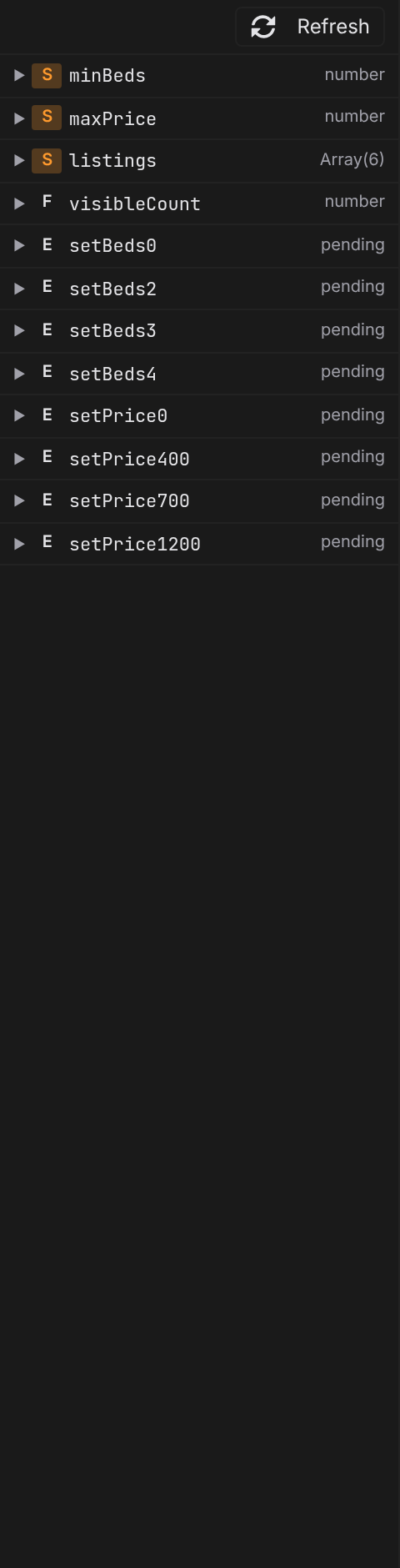
Read the values
Each state entry gets a row: its kind badge, its name, and a value summary —
Array(12)— a list and how many items it holds.{5}— an object and how many fields it has.string,number,boolean— a plain value's type.pending— no value yet: a data source that hasn't finished resolving (or failed to).
Click a row to expand the value as a tree. Nested objects and lists unfold a few levels deep, long lists show their first items with a "… N more" tail, and long strings are shortened — enough to verify shape and content without drowning in data.
Refresh
The values are a snapshot from the canvas render. Click Refresh in the panel's toolbar to re-render the canvas and read them again — useful after editing a data source, or when you want to re-fire a fetch.
Test values for component options
A component file renders on the canvas with its options at their defaults. To see it with real-looking data, use the option fields in the tab bar: one small field per component option, as introduced in Modes and the preview toggle .
Open a component file. The tab bar shows a field named after each option.
Type a test value. Values that read as JSON are treated that way —
42is a number,truea flag,["a","b"]a list — and anything else is text.The canvas re-renders with the value, and the Data activity, template previews, and formula badges all see it.
Clear the field to return that option to its authored default.
Test values are a preview aid — they live with your editing session, not in the component file.
Debug with it
A
pendingRequest usually means the URL is wrong or the server didn't answer — check the entry in the State panel, then Refresh .A computed value that shows the wrong result: expand the entries it depends on here first; most "formula bugs" are actually surprising input data.
Events not visibly doing anything? Trigger them with Preview on and watch the target entry's row change.
Next
The entries themselves are declared in the State panel
Where the data comes from: Data sources
The same live values ride along in the formula workspace 's data rail
 Suite
Suite